
You can configure userSense Binding to tie a userSense user to a specific IP address, MAC address, or both. Once a user is bound, they can only authenticate from the device or network location you specify — login attempts from any other IP or MAC are rejected. This helps enforce that a user only ever connects from their assigned workstation, which discourages credential sharing and reduces the risk of access from a stolen password.
Prerequisites
- Browsing mode must be set to userSense mode. userSense Binding can only be configured when the firewall's browsing mode is set up in userSense mode. If it is not, the binding option will not be available.
- You do not need userSense Bypass. If you are using userSense Binding, there is no need to also configure userSense Bypass — binding handles access control on its own.
NOTE: userSense Binding can only be configured when the browsing mode is set up in userSense mode. If you use userSense Binding, you do not need to use userSense Bypass.
How binding works
When a user is bound, the firewall checks the configured condition(s) at login time:
| Configuration | Behaviour |
|---|---|
| IP address only | The user can only log in from the specified IP address. |
| MAC address only | The user can only log in from the device with the specified MAC address. |
| Both IP and MAC | The user can only log in when both the IP address and the MAC address match. This is the most restrictive option and pins the user to one specific device on one specific address. |
Binding to a MAC address is more robust against a user simply changing their IP, while binding to both gives the tightest control.
Viewing configured bindings
The userSense Binding screen shows a list of all userSense users that currently have binding configured, along with the IP and/or MAC address each user is bound to. Review this list before adding or editing entries.
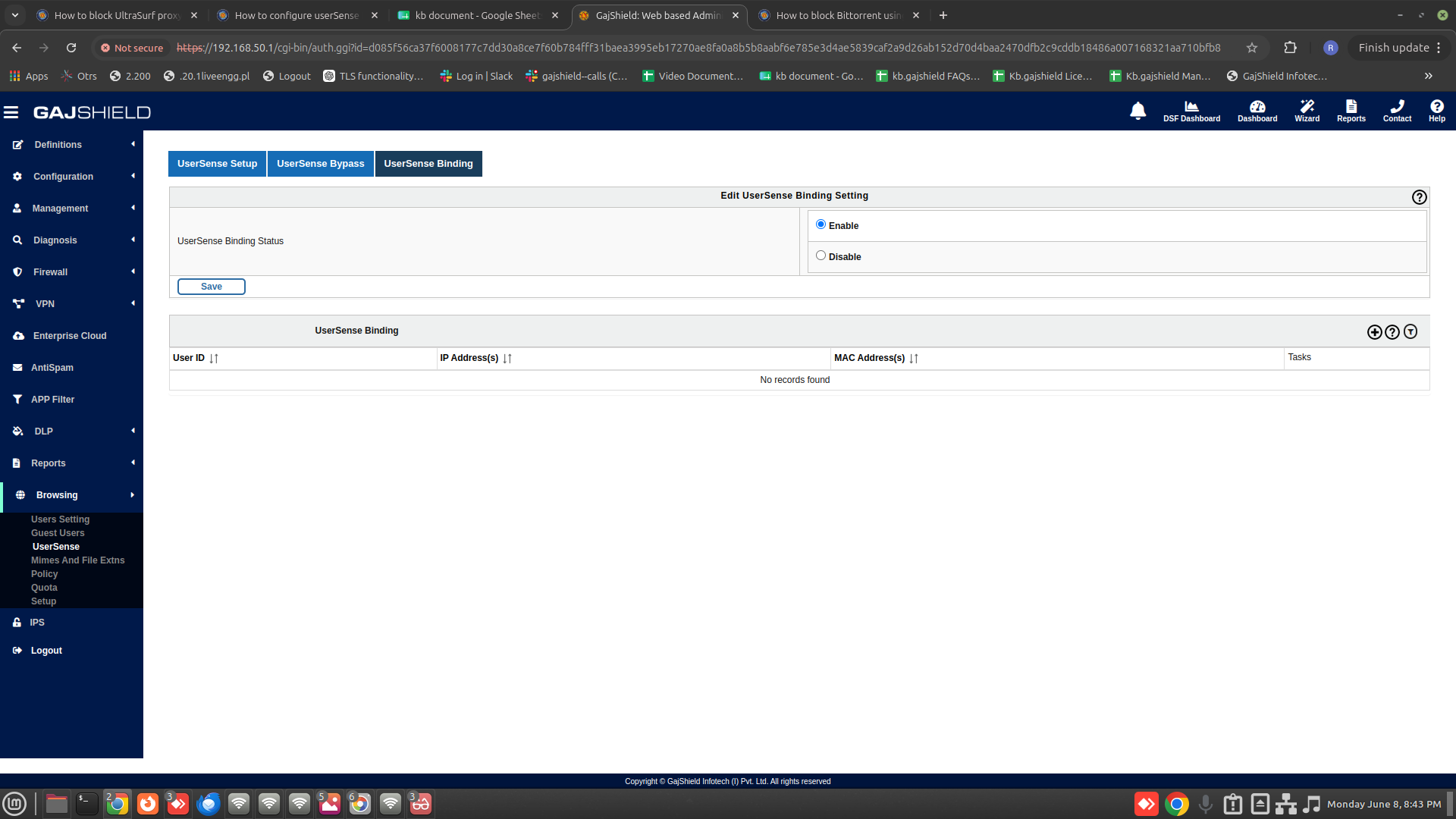

To add userSense Binding click on  button.

Provide the following information:
- User ID: Select a user from the user list to bind to an IP/MAC address.
- IP Address: Enter the IP address you want to bind the user to. Leave blank to bind by MAC only.
- MAC Address: Enter the MAC address you want to bind the user to. Leave blank to bind by IP only.
You must provide at least one of the two fields.
NOTE: You can enter an IP address, a MAC address, or both, and the user can log in only when the configured condition(s) match. Entering only an IP address binds the user to that IP; entering only a MAC address binds the user to that device; entering both requires both conditions to match before login is permitted.
Tip: A user bound to a dynamically assigned (DHCP) IP address may be locked out if their lease changes. For users on DHCP, bind by MAC address or reserve a static IP for the device.
Attached Files:
How_to_configure_userSense_BindingA_on_your_firewall.pdf
Was this article helpful?
Your feedback helps us improve the knowledge base.